Skip to content

Everything goes to the Trash first

See what's filling your Mac. Free it up safely.

Storage Buddy draws your storage on a picture of your own Mac, shows you exactly where the space went, and helps you clear out caches, old downloads, duplicates and forgotten build folders, without guessing what's safe.

macOS 14 Sonoma or later · Apple silicon & Intel · 6.3 MB

Storage Buddy's Explorer: folders drawn as colored blocks on a Mac mini, with a list of the largest items beside it

How it works

Scan, review, clean. In that order.

No mystery buttons. You always see what will be removed before anything moves.

  1. Step 1

    Scan

    Storage Buddy looks through your disk and draws it on your Mac, sorted into apps, documents, media, developer files, caches and more.

  2. Step 2

    Review

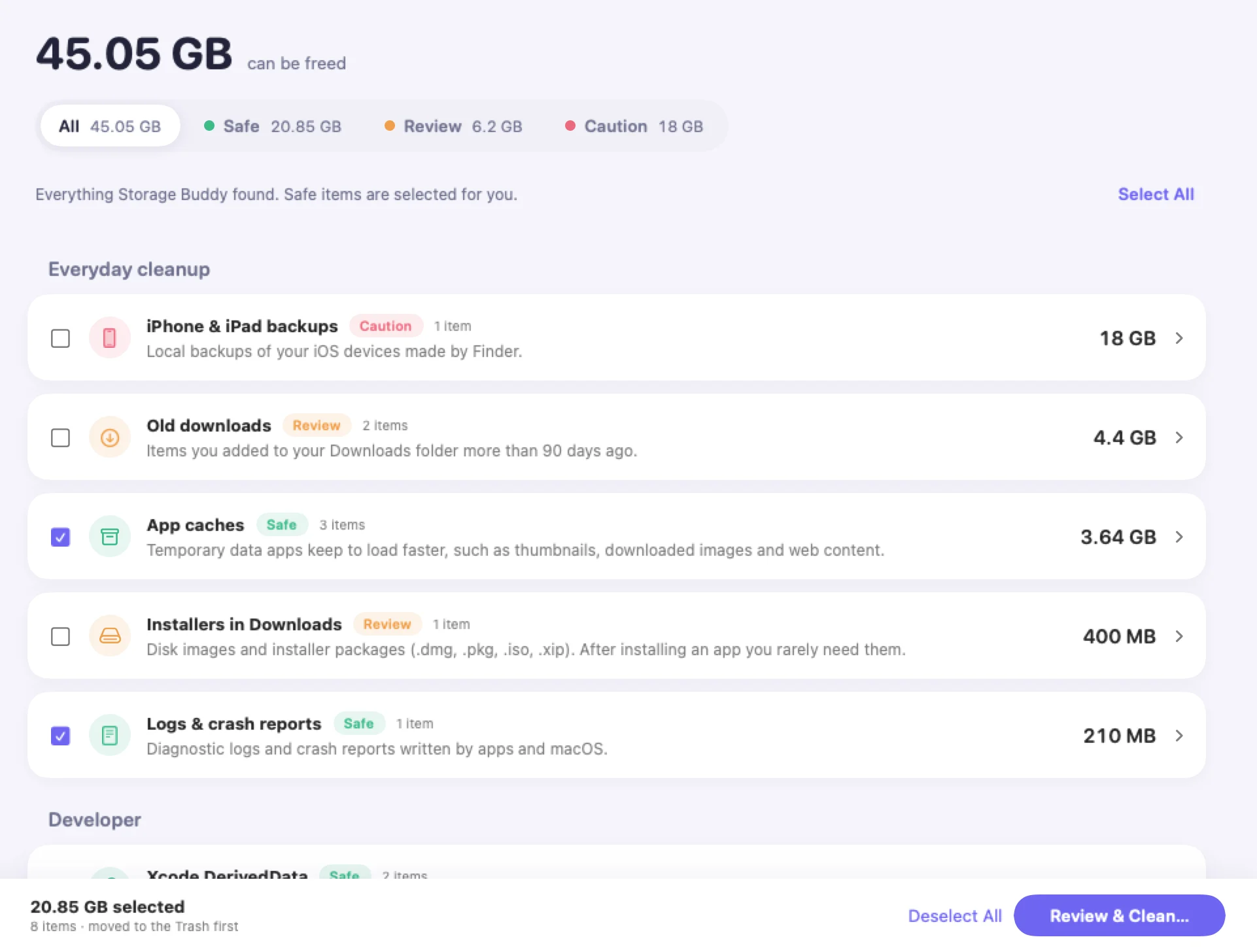
    Everything it suggests is grouped as Safe, Review or Caution, with a plain-English note on what each item is. You pick what goes.

  3. Step 3

    Clean

    Files move to the Trash first, never straight to oblivion. Changed your mind? Put Back from History.

Features

Everything you need to understand your storage.

A clear picture first, then careful tools to tidy up. Each one explains what it found before it asks you to do anything.

Overview

Your Mac, drawn as itself.

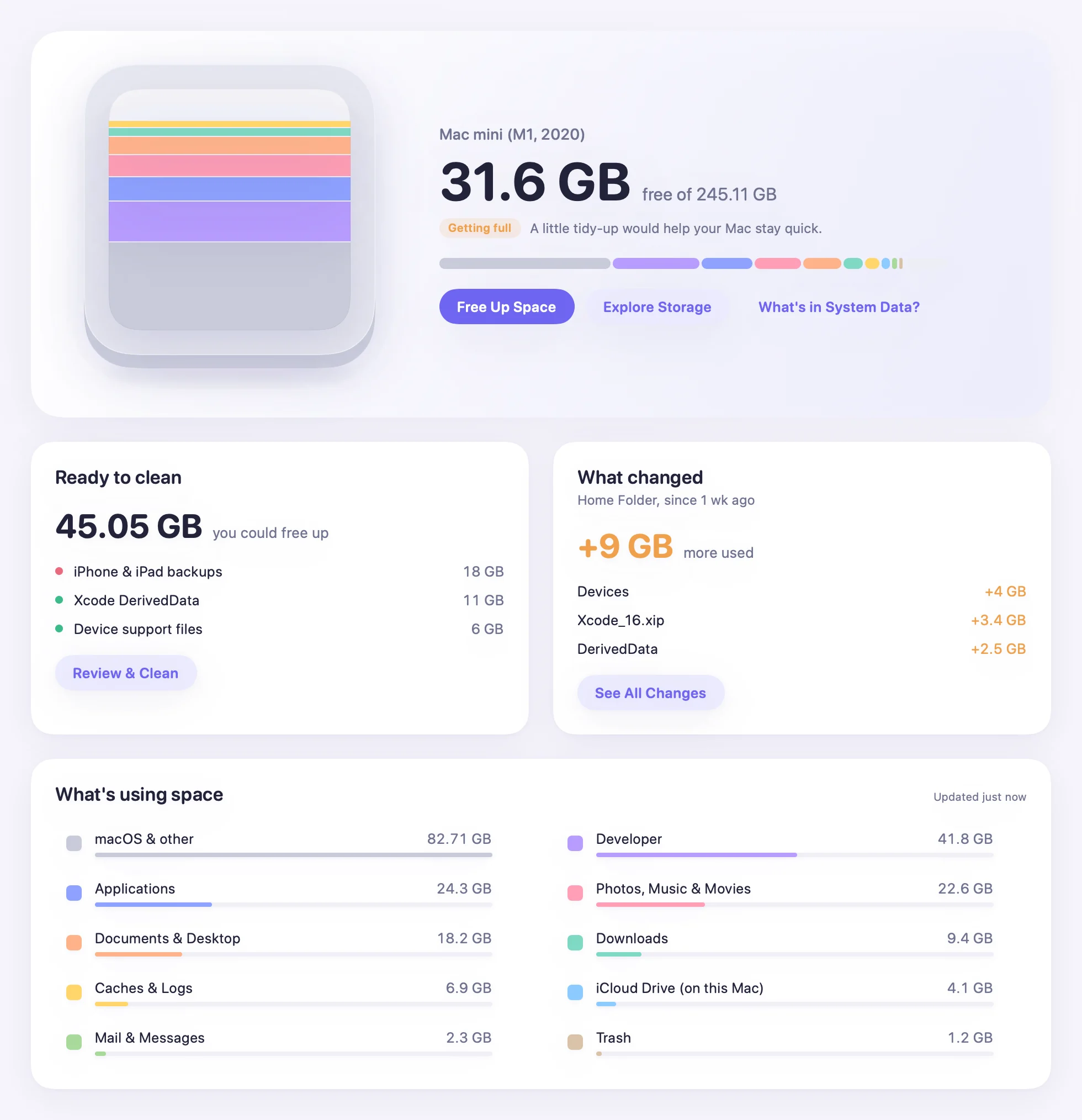
Storage Buddy recognizes your model (Mac mini, MacBook, iMac, Mac Studio or Mac Pro) and fills a drawing of it with your storage, one soft color per kind of file. You see the whole picture in a glance.

  • Apps, documents, media, downloads, iCloud, developer files and more, each in its own color
  • System Data explained: Time Machine snapshots, caches and logs, instead of one gray mystery bar
  • Category cards with the size of each kind of file

The Mac models Storage Buddy can draw: Mac mini, MacBook, iMac, Mac Studio and Mac Pro
Mac mini · MacBook · iMac · Mac Studio · Mac Pro
Overview screen: a drawing of a Mac mini filled with colored storage bands, with category cards below

Explorer

Every folder, as blocks you can step into.

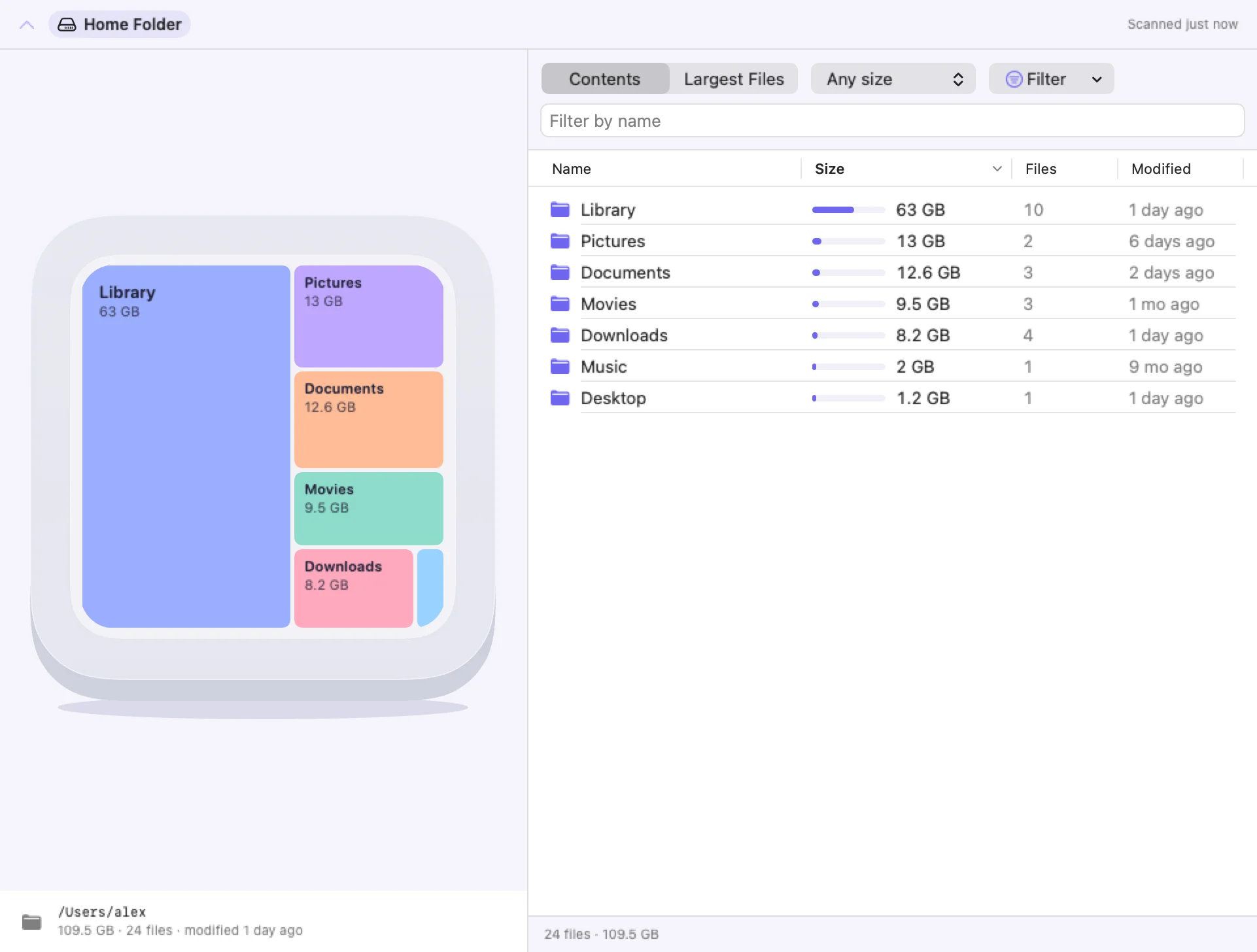
Explorer lays out your folders as colored blocks on your Mac's screen. The bigger the block, the more space it takes. Click one to go inside.

  • Changes shows what grew since your last scan
  • Filter by kind and by age to find what you've forgotten
  • Largest Files lists the heavy hitters across your disk
Explorer: folders drawn as blocks on a Mac mini screen, next to a file list

Smart Cleanup

Clean up without the guesswork.

Smart Cleanup gathers the clutter Macs collect: caches, logs, old downloads, leftover installers, old iPhone and iPad backups and developer caches. Then it lets you decide.

  • Sorted into Safe, Review and Caution tabs so you know what you're looking at
  • Nothing is deleted until you've reviewed it
  • Everything goes to the Trash first, and History can Put Back what you removed
Smart Cleanup with Safe, Review and Caution tabs listing caches, logs and old downloads

Tidy up

Duplicates, the Trash and apps you're done with.

Three smaller jobs that add up to a lot of space.

Duplicates

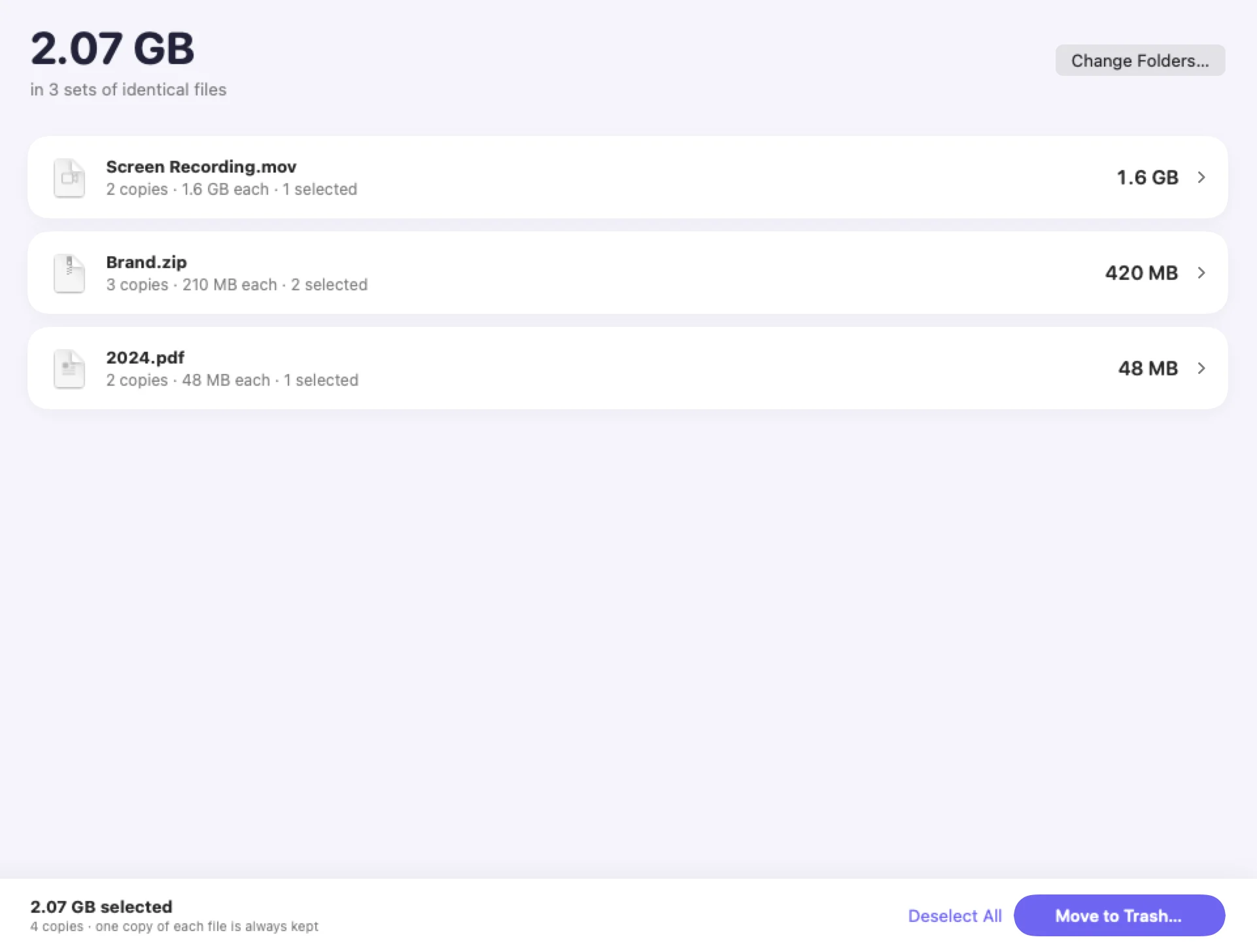
Finds identical files hiding in different folders. It always keeps at least one copy of every file, and it skips code projects so your repos stay intact.

Duplicates screen grouping identical files

Trash

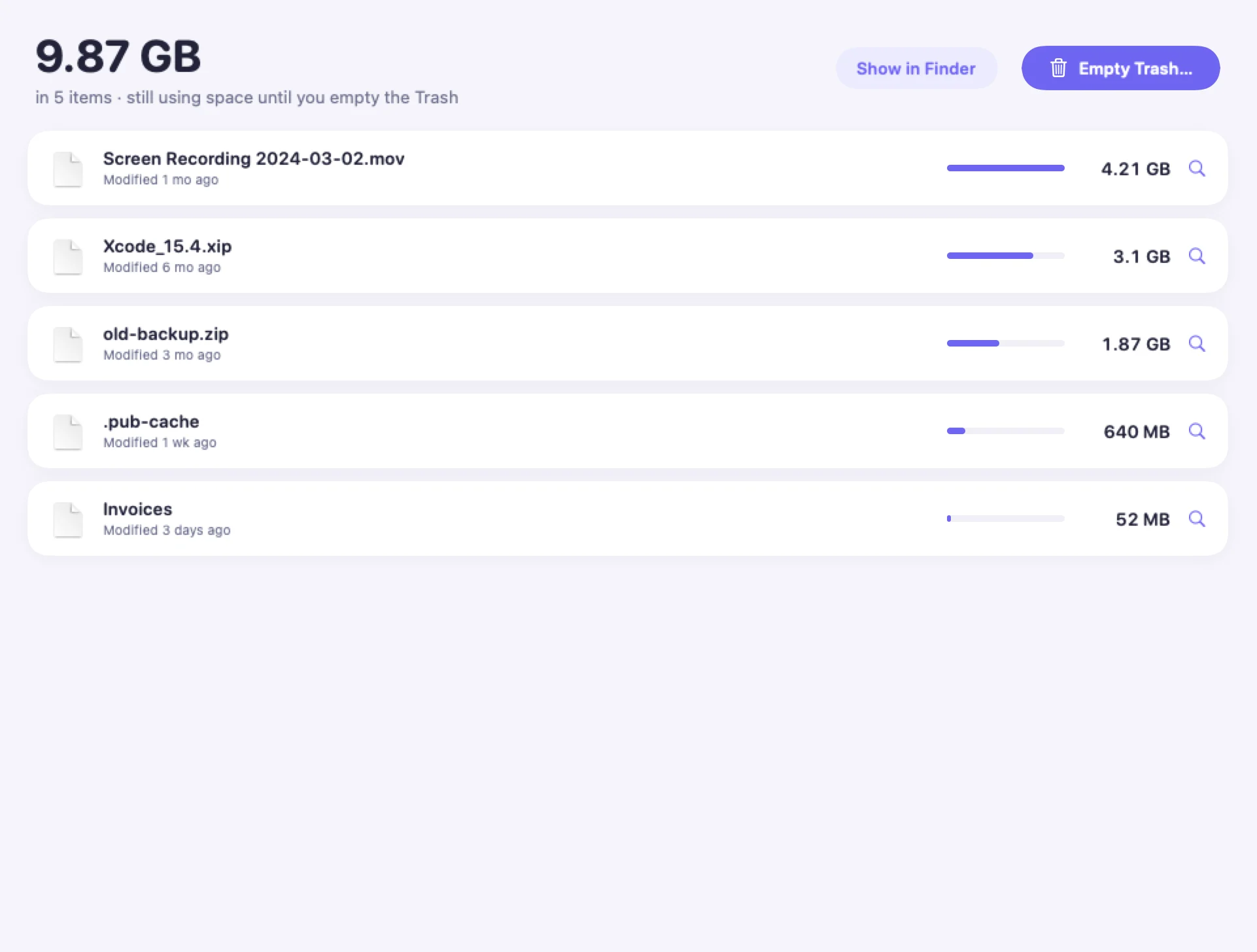
See what's actually sitting in your Trash and how much space it holds, then empty it all at once when you're ready.

Trash screen listing what's in the Trash and its total size

Applications

Uninstall apps together with the support files they leave behind, and find leftovers of apps you already deleted.

Works in the background

Keeps cleaning while you keep exploring.

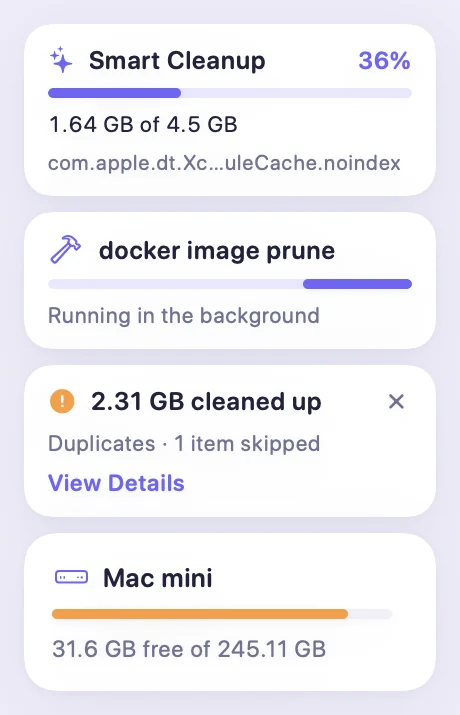
Start a cleanup and carry on. The work keeps going while you use the rest of the app, with live progress in the sidebar.

  • Live progress with an estimate of the time left
  • Won't let you quit halfway through and leave a job half done
  • Friendly tips to read while a scan runs
Sidebar activity card showing Smart Cleanup at 36%, 1.64 GB of 4.5 GB, with a progress bar
A Did you know? tip shown while a scan runs

Progress lives in the sidebar, so you can browse Explorer or Duplicates while a cleanup finishes.

And more

Thoughtful extras, built in.

Small things that make a big difference over time.

  • Lighter with iCloud

    Remove the local copy of a file and keep it safe in iCloud Drive.

  • Move to an external drive

    Move big folders to another disk. Storage Buddy verifies the copy first.

  • Right from Finder

    Right-click any folder and choose Analyze with Storage Buddy.

  • Reports

    Export what you found as a PDF or CSV.

  • Cleanup on a schedule

    Optionally run the Safe cleanup automatically. It's off unless you turn it on.

  • Low-space alerts

    A heads-up when your disk is running low on space.

  • Menu bar

    Keep an eye on your storage from the menu bar.

  • Light & dark

    Soft colors in both, following your Mac or your choice.

For developers

Get gigabytes back from old projects.

Build folders and dependency caches pile up fast. Storage Buddy finds the rebuildable stuff and leaves your source alone.

Projects

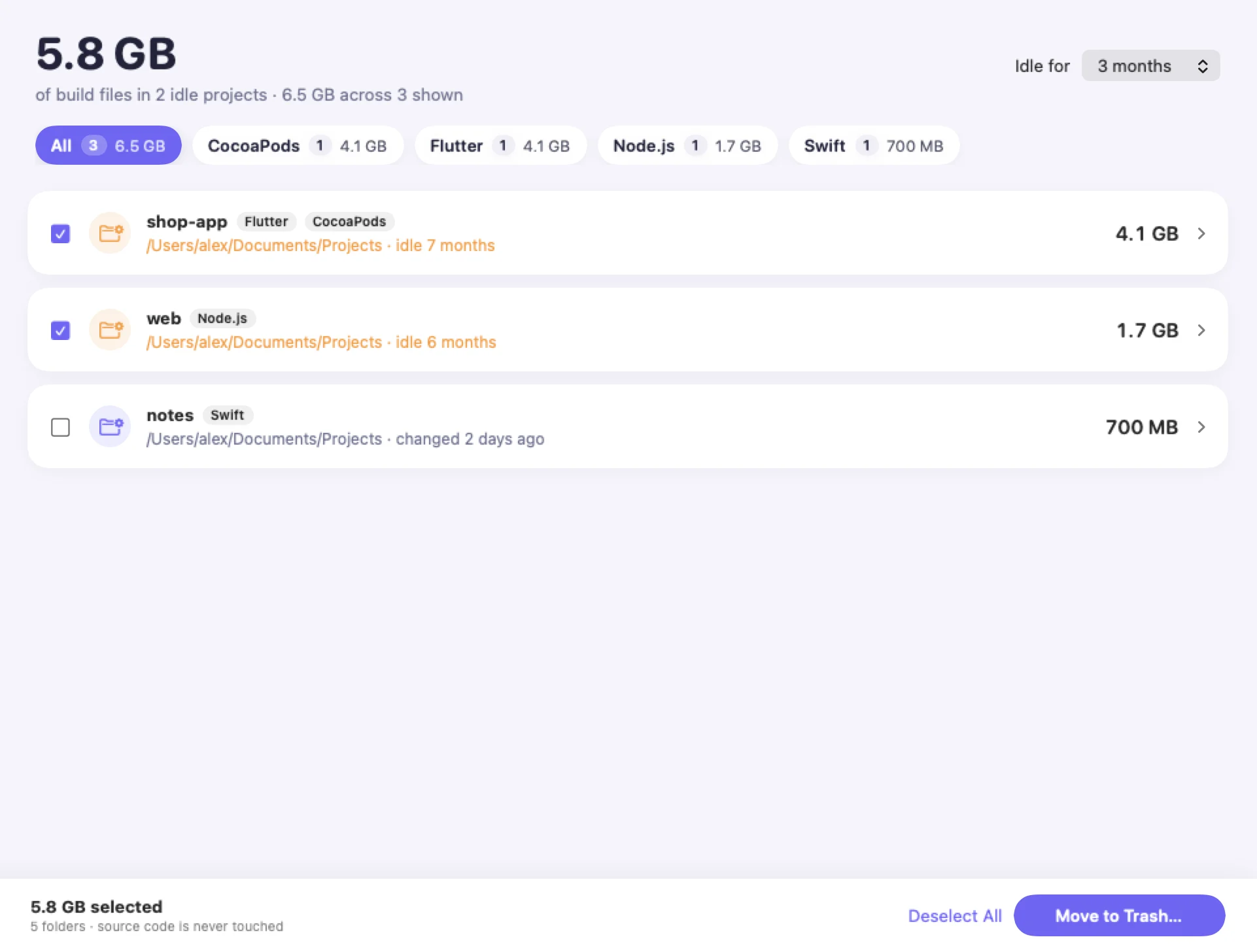
Finds the heavy, rebuildable folders in projects you haven't touched in months: node_modules, Pods, build, .dart_tool, target, .venv and more.

  • node_modules
  • Pods
  • build
  • .dart_tool
  • target
  • .venv
  • and more

Your source code is never touched. Only build output and downloaded dependencies, which you can rebuild or reinstall anytime.

Projects screen listing stale build and dependency folders by project, with sizes and last-modified dates

Developer Tools

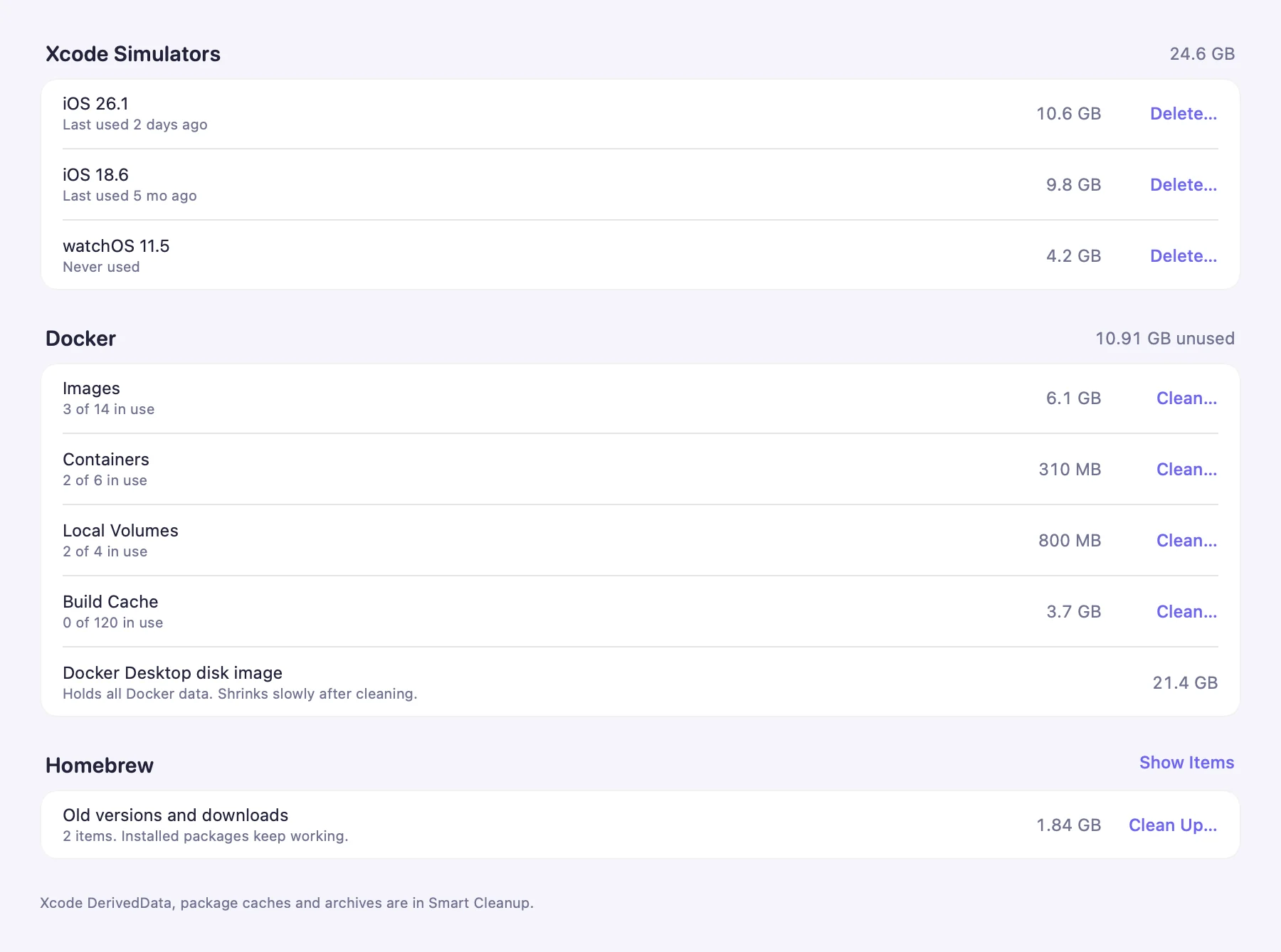
Clears old Xcode simulator runtimes, Docker images and build cache, and Homebrew leftovers, using each tool's own command, only after you confirm.

This screen only appears when those developer tools are installed on your Mac.

Developer Tools screen with rows for Xcode simulators, Docker and Homebrew

Privacy & safety

Your files stay yours. And they stay put until you say so.

Storage Buddy doesn't send your files or file names anywhere. It works entirely on your Mac.

  • Everything stays on your Mac

    Scanning and cleaning happen locally. Storage Buddy doesn't send your files or file names anywhere.

  • No account

    Download it, open it, use it. There's nothing to sign up for.

  • Protected locations stay protected

    Protected system locations are never touched, no matter what you select.

  • Trash first, always

    Files move to the Trash, not into the void. You can still restore them in Finder.

  • Put Back

    History remembers what was removed so you can put it back where it came from.

  • You decide

    Nothing is deleted until you've reviewed it. Riskier items are labeled Review or Caution.

FAQ

Questions, answered honestly.

Is it safe?

Storage Buddy is built around not losing things. Nothing is removed until you review it, items are labeled Safe, Review or Caution, protected system locations are never touched, and everything goes to the Trash first. If you change your mind, use Put Back from History or restore from the Trash in Finder.

Does it need Full Disk Access? Why?

It works best with it. macOS hides some folders (like Mail, Safari data and parts of your Library) from apps unless you grant Full Disk Access in System Settings › Privacy & Security. Without it, Storage Buddy still works, but it can't measure those folders, so the picture is less complete. The access is only used to measure and clean files on your Mac; nothing is sent anywhere.

What happens to the files I delete?

They're moved to the Trash, just like dragging them there in Finder. They stay there until you empty the Trash, and History lets you Put Back recent removals. Developer Tools is the one place that works differently: they run each tool's own cleanup command (for example, for Docker or Homebrew), and only after you confirm.

Which Macs are supported?

Any Mac running macOS 14 Sonoma or later, on Apple silicon or Intel. The Overview draws your actual model: Mac mini, MacBook, iMac, Mac Studio or Mac Pro.

Is the download safe to open?

Yes. Storage Buddy is signed with a Developer ID and notarized by Apple, so macOS checks it and opens it like any other Mac app.

Will it delete my code?

No. Projects only looks at build output and downloaded dependencies, like node_modules, Pods, build, target or .venv, which your tools can recreate. Source files are never touched, and Duplicates skips code projects entirely.

Make room for what matters.

See where your space went in a minute, then clean up at your own pace. Everything goes to the Trash first.

Download for Mac

Version 1.5.3 · macOS 14 Sonoma or later · Apple silicon & Intel · 6.3 MB