Skip to content

3 native solutions · macOS 14 and later

Everyday Mac problems, solved natively.

MacStore is a small set of focused macOS solutions. Each one starts from a single problem, like a disk that's full or a clipboard that forgets, and solves it on your Mac, without an account or a cloud service.

Solutions

Pick the problem. Download the solution.

Each solution is its own small Mac app and its own DMG. Install only the ones you need.

Storage Buddy

Version 1.5.3 · 6.3 MB

The problem
“My Mac is running out of space and I don't know what's filling it.”
The solution
Storage Buddy draws your storage on a picture of your own Mac, shows which folders grew, and gathers caches, old downloads, duplicates and rebuildable developer folders into one reviewed cleanup. Everything goes to the Trash first.
What it handles
  • Storage overview by category, including System Data explained
  • Explorer: every folder as blocks you can step into
  • Smart Cleanup with Safe, Review and Caution labels
  • Duplicates, app uninstalls and leftovers
  • Idle node_modules, Pods, build folders, simulators and Docker data
  • Trash first
  • Put Back
  • Runs on your Mac

macOS 14 Sonoma or later · Apple silicon & Intel

Storage Buddy's Overview: a Mac mini filled with storage by category, with free space and what's ready to clean

ClipVault

Version 1.0.2 · 2.1 MB

The problem
“I copied something an hour ago and now it's gone.”
The solution
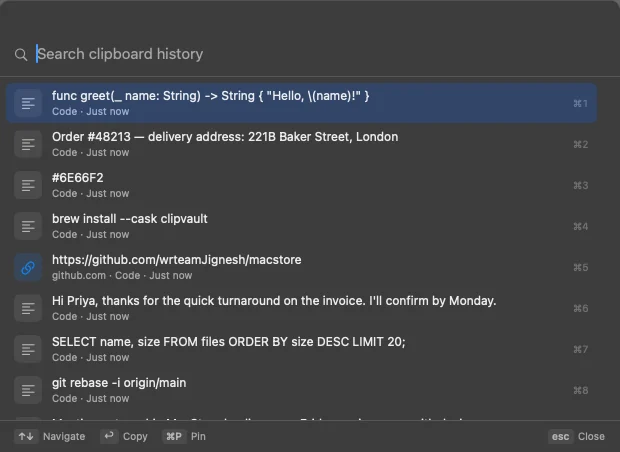
ClipVault remembers the text, links, images and files you copy, and brings them back with one shortcut (⌥⇧V) from any app. Search is instant and offline. Password-manager copies and obvious secrets are never stored.
What it handles
  • Clipboard history of text, links, rich text, images and files
  • Quick panel from any app with ⌥⇧V, fully keyboard driven
  • Instant offline search, with filters by type and date
  • Pinned items, favorites and a snippet library
  • Pause, app exclusions, secret detection and retention limits
  • No network access
  • No account
  • Skips secrets

macOS 14 Sonoma or later · Apple silicon & Intel
ClipVault's quick panel: a search field above recent copies, including code, a link and an address, each with a ⌘-number shortcut

Ledge

Version 1.0.0 · 2.7 MB

The problem
“My sticky notes are everywhere, and never the one I need.”
The solution
Ledge keeps sticky notes in a deck on the edge of your screen. Link a note to an app, a window or a website and it shows up when you're there; give it a schedule and it shows up on the right day, with its checklist reset. The desktop shows them all.
What it handles
  • A deck of notes on any screen edge that opens on hover
  • Notes linked to apps, window or tab titles and websites
  • Repeating notes: chosen weekdays, monthly dates, first or last working day
  • Checklists that untick themselves each time, with reminders
  • Any colour, clickable checklists, search, backup and export
  • No network access
  • No account
  • Notes stay on your Mac

macOS 14 Sonoma or later · Apple silicon & Intel
XcodeFileEditView
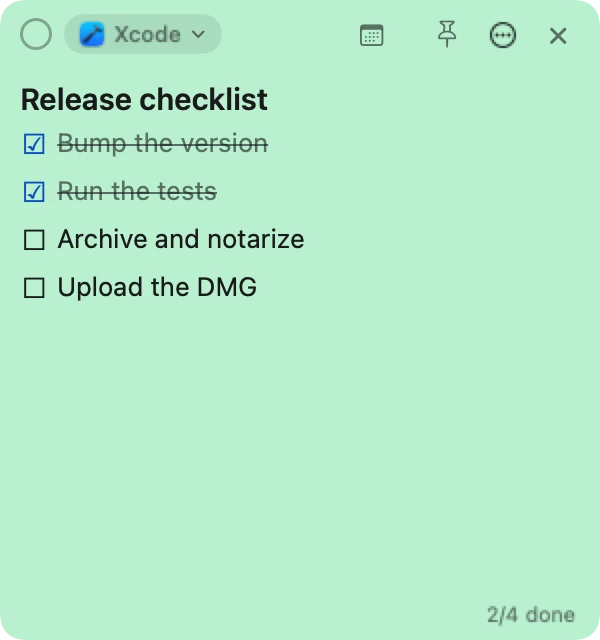
A Ledge sticky note in Xcode: a release checklist with two items ticked
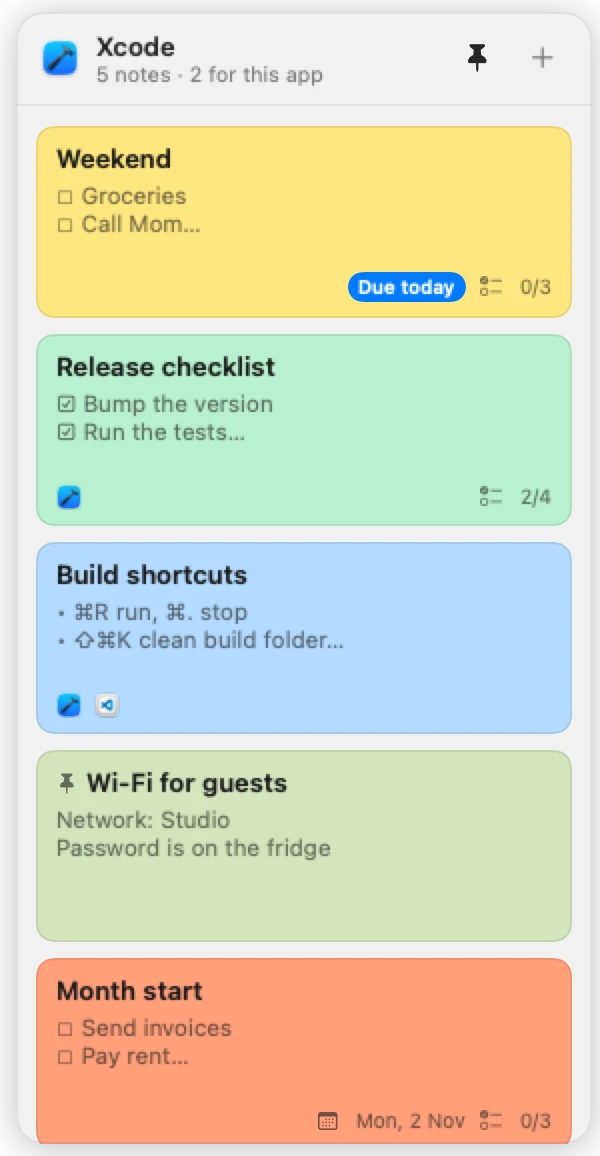
Ledge's deck on the right edge in Xcode: a weekend checklist due today, a release checklist and build shortcuts for Xcode, a pinned Wi-Fi note and a monthly checklist

How we build

The same rules for every solution.

A solution only goes on MacStore when it follows all of these.

  • Native to macOS

    Written in Swift with AppKit and SwiftUI. Universal builds for Apple silicon and Intel, small downloads, light on battery.

  • Your data stays on your Mac

    Files, file names, clipboard contents and notes are processed locally. Nothing is uploaded, and there is no analytics.

  • No account

    Download a DMG, open it, use it. There's nothing to sign up for or sign in to.

  • Careful by default

    Storage Buddy moves files to the Trash first. ClipVault never stores password-manager copies or obvious secrets. Ledge asks for extra access only when you turn on the feature that needs it.

  • One problem each

    Each solution does one job well instead of becoming a suite. Use one, or all of them.

  • Clear about limits

    Each page says what the solution can't do, what it needs from macOS and why, in plain words.

Install

Every solution installs the same way.

About a minute, start to finish.

  1. Step 1

    Download the DMG

    Each solution is a single disk image. Open it once it has downloaded.

  2. Step 2

    Drag to Applications

    Drag the app onto the Applications folder in the window that opens, then eject the disk image.

  3. Step 3

    Open it

    Open the app from Applications. It's signed and notarized by Apple, so macOS checks it and opens it like any other Mac app.

FAQ

Questions, answered honestly.

What is MacStore?

A small collection of native Mac solutions, each built around one everyday problem. It isn't an app store: there's nothing to buy and no account. Each solution is a separate DMG you can download and install on its own.

Do the solutions cost anything?

No. Every solution listed here is a free DMG download, with no account and no sign-up.

Which Macs are supported?

Any Mac running macOS 14 Sonoma or later, on Apple silicon or Intel. Each download is a universal build.

Are the downloads safe to open?

Yes. Every solution is signed with a Developer ID and notarized by Apple, so macOS checks it before it first opens, like any other Mac app.

How do I remove a solution?

Quit it and drag it from Applications to the Trash. Each solution's page says where it keeps its own data, if you want that gone too.